Atlas Client is a dedicated launcher and utility client for Minecraft Bedrock Edition on mobile devices. Instead of playing through the normal Minecraft app, you launch the game through Atlas. Once inside, you gain access to a full mod menu with dozens of modules that you can turn on, off, and customize.
The developers at Atlas Software LLC created it to improve the mobile Minecraft experience. It is not an official Mojang or Microsoft product. It is a third party client that adds tools the base game does not include. The team emphasizes that Atlas only includes non cheat, quality of life features. This makes it safer for regular play on servers that allow utility clients.
Atlas stands out because it works on both Android and iOS. It is one of the first native clients available for iPhone and iPad users. On iOS it even includes a built in version switcher so you can change Minecraft versions with a single tap.
Atlas Client MCPE: Feature Overview
FPS Unlocker
Minecraft Bedrock is normally locked at 60 frames per second on many devices. Atlas removes that limit so the game can run at higher frame rates matching your screen refresh rate. Higher FPS makes movement and camera control feel much smoother, especially on modern phones with high refresh rate displays.
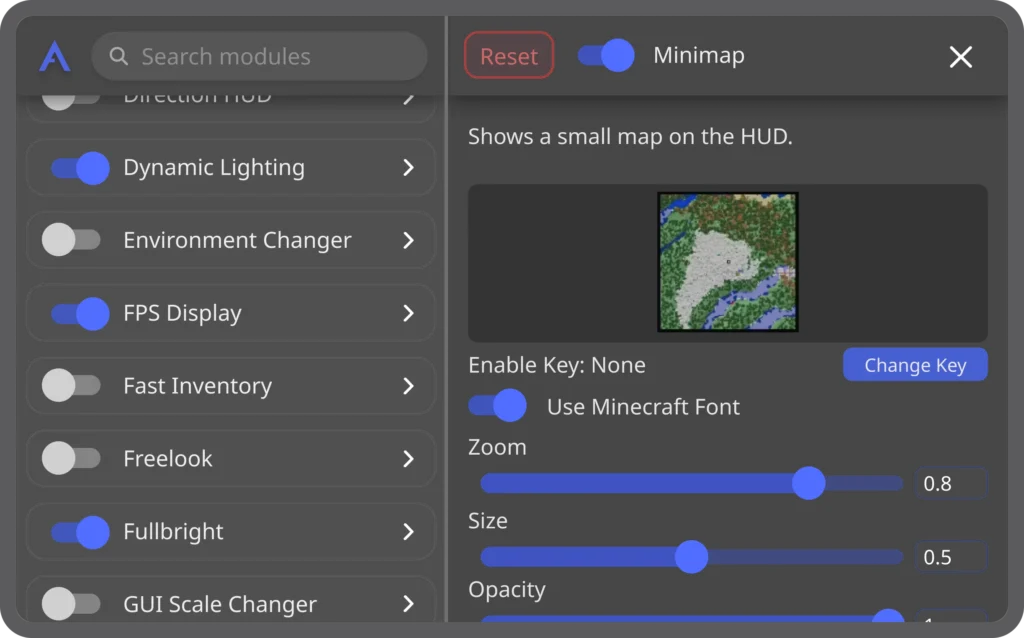
Over 60 Fully Customizable Modules
Every module can be adjusted. You can change colors, positions, sizes, keybinds, and fonts. The menu is designed to be easy to navigate on a touch screen.
Waypoints
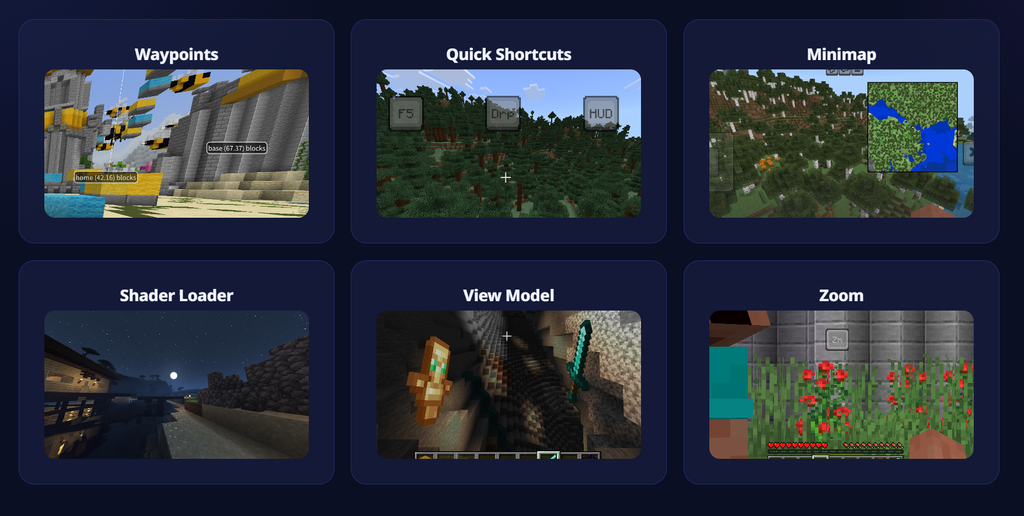
Place markers in your world so you can find important locations later. This is extremely useful for survival worlds, bases, and resource gathering spots.
Minimap
A small map appears on your screen to help with navigation. This feature is available in the premium version for some users.
Shader Loader
Import and use MaterialBin shader resource packs directly through the client. This lets you add improved lighting and visual effects without complicated extra steps.
View Model and Zoom
Adjust how your held items appear on screen and zoom in when you need a closer look at distant objects or builds.
Quick Shortcuts
Fast access buttons for common actions so you spend less time digging through menus.
Other popular modules include fullbright for better visibility in dark areas, chunk borders for precise building, keystrokes display, CPS counter, armor and potion HUDs, coordinates display, auto sprint, and various visual tweaks. Everything sits inside one organized menu that you can open while playing.
Deep Customization Options
One of the strongest points of Atlas Client is how much you can personalize it. Almost every module lets you change its appearance and behavior. You can move HUD elements around the screen, adjust transparency, pick custom colors with a hex palette, change fonts, and set your preferred sizes. Grid snapping helps you line everything up cleanly.
This level of control means the client can look clean and minimal or packed with information, depending on what you prefer. Content creators often use it to create a polished on screen look for videos, while survival players keep only the most useful tools enabled.
Atlast Client: Android and iOS Support
On Android the client is available on the Google Play Store. Installation is straightforward. You download Atlas, complete the initial setup, and then launch Minecraft through the Atlas app instead of the normal Minecraft icon.
On iOS the client is sideloaded. The most common method is using SideStore or a similar tool. Once installed, Atlas for iOS includes a version switcher that makes it easy to move between different Minecraft Bedrock versions. Many of the same modules available on Android also work on iOS.
How to Install Atlas Client
For Android
- Make sure you have the official Minecraft Bedrock app installed from the Google Play Store.
- Download Atlas Client from the Google Play Store or the official website.
- Open Atlas and finish the first time setup.
- Launch Minecraft through Atlas Client.
- Open the mod menu inside the game and start enabling the modules you want.
For iOS
- Set up a sideloading tool such as SideStore.
- Download the Atlas IPA file from the official site.
- Install it using your sideloader.
- Open Atlas, complete the setup, and launch Minecraft through it.
- Use the built in version switcher if needed.
Always download from the official Atlas Client website or the Google Play Store to avoid outdated or modified files.
Free Version and Premium Options
Atlas V2 is free to download and use. The free version already includes a large number of useful modules and the core performance features. Premium is an optional purchase that unlocks early access to new builds and exclusive modules such as the minimap. Buying Premium also supports the developers so they can continue updating the client for new Minecraft versions and adding more features.
Is Atlas Client Safe to Use?
Atlas Client only includes quality of life and visual modules. There are no combat cheats, aim assists, or movement hacks. The official site clearly states that the client focuses on fair play features.
As with any third party tool, individual servers may have their own rules. Always check the rules of any multiplayer server you join. For single player worlds and many community servers that allow utility clients, Atlas is a popular and accepted choice.
Important Links
| Link Description | URL |
|---|---|
| Official Atlas Client Website | https://atlasclient.net/ |
| Google Play Store Download | https://play.google.com/store/apps/details?id=net.atlasclient.atlaspe |
